Table of Contents
Printer Specifications
Ender 5 Plus (FDM)
- Bed Size: 350x350x400 [mm]
- Bed Origin: Front Left Corner (Facing Printer)
- Max Print Speed: 180 [mm/s]
- Max Hot-End Temperature: 315 [°C]
- Nozzle Diameter: 0.4 (other options: 0.25, 0.6, 0.8) [mm]
- Filament Diameter: 1.75 [mm]
- Modifications:
- Webcam Mount & Pulley Guards
- MicroSwiss Direct Drive Extruder
- TinyMachines Marlin Firmware
- Configured Materials:
- PLA: Hot-End @ 200°C, Bed @ 60°C
- PLA+: Hot-End @ 220°C, Bed @ 55°C
- PETG: Hot-End @ 250°C, Bed @ 80°C
- PC-CF: Hot-End @ 265°C, Bed @ 110°C
Requires Bed Adhesive (Hair Spray)
(Requires Enclosure or No Shop Fans) & 10min Preheating
Typical Usage
3D models can be represented in various formats and include formats like STL, 3MF, OBJ and others. These files store precise information about how the object you intend to print is shaped. However, printers themselves do not accept these file formats on their own but rather a list of instructions known as G-Code. Thus, some sort of translation process, known as slicing, is required to convert these 3D modelling formats into G-Code before printing can occur.
UNDER NO CIRCUMSTANCES SHOULD YOU EVER TOUCH THE PRINTER WITHOUT READING THIS SECTION WORD-FOR-WORD

DO NOT START PRINTS THAT WILL OCCUR OVER SUNDAY NIGHT, AUTOMATED DOCKER MAINTENANCE WILL OCCUR AND YOUR PRINT WILL FAIL
Slicing
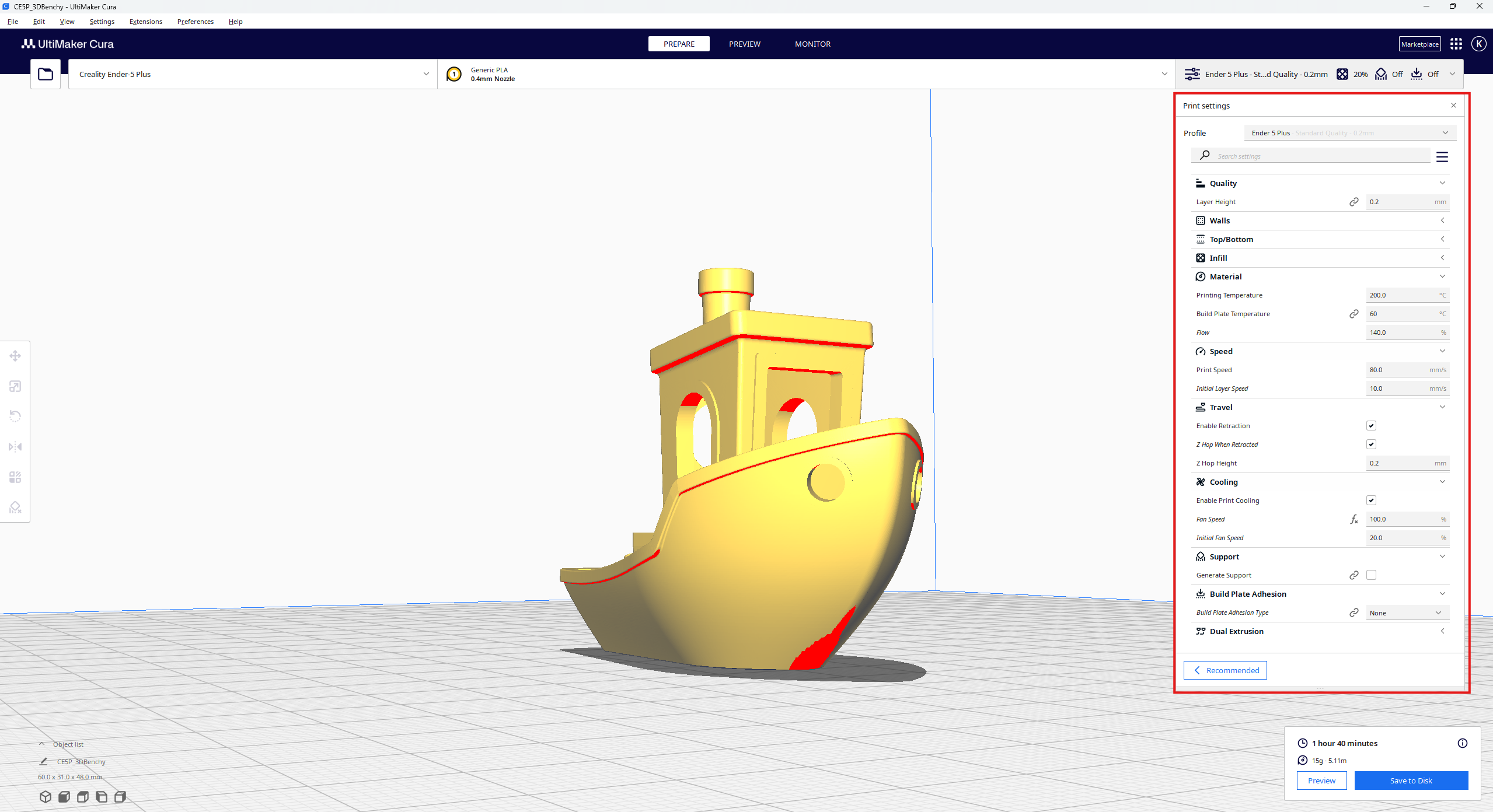
The slicer that has been configured to work with the printer in the shop is CuraSlicer and should contain all of the printer-specific settings necessary to ensure a successful print using any material with the above printer specifications. However, there are a few settings to take note of which may require modification depending on the size of the print lines that you are willing to tolerate. By default, the printer is configured with a 0.2mm layer height which results in somewhat visible print lines. To reduce the presence of print lines, the layer height can be reduced to a minimum of 0.1mm. Further reduction past this requires the use of acetone or some other agent to dissolve surface plastic if the used material supports it (none of ours do so far, but this notably works with ABS). Certain objects require support because melted plastic cannot be deposited accurately in mid air. To rectify this, ensure that support generation\placement is enabled for models that require this. CuraSlicer will provide a G-Code file containing each instruction to be executed by the printer during the manufacturing process. Accessing the print settings can be done using the pulldown box on the right, an example of which is shown in the below image. Technicians can access a configured instance of CuraSlicer at cura.kwsystems.tech when logged into their KW Systems G-Suite account. Do not use a local version of Cura unless it has been properly configured for our printer. As of now our setup is configured to use the slicer running off of the server which is the link noted above.
Printing
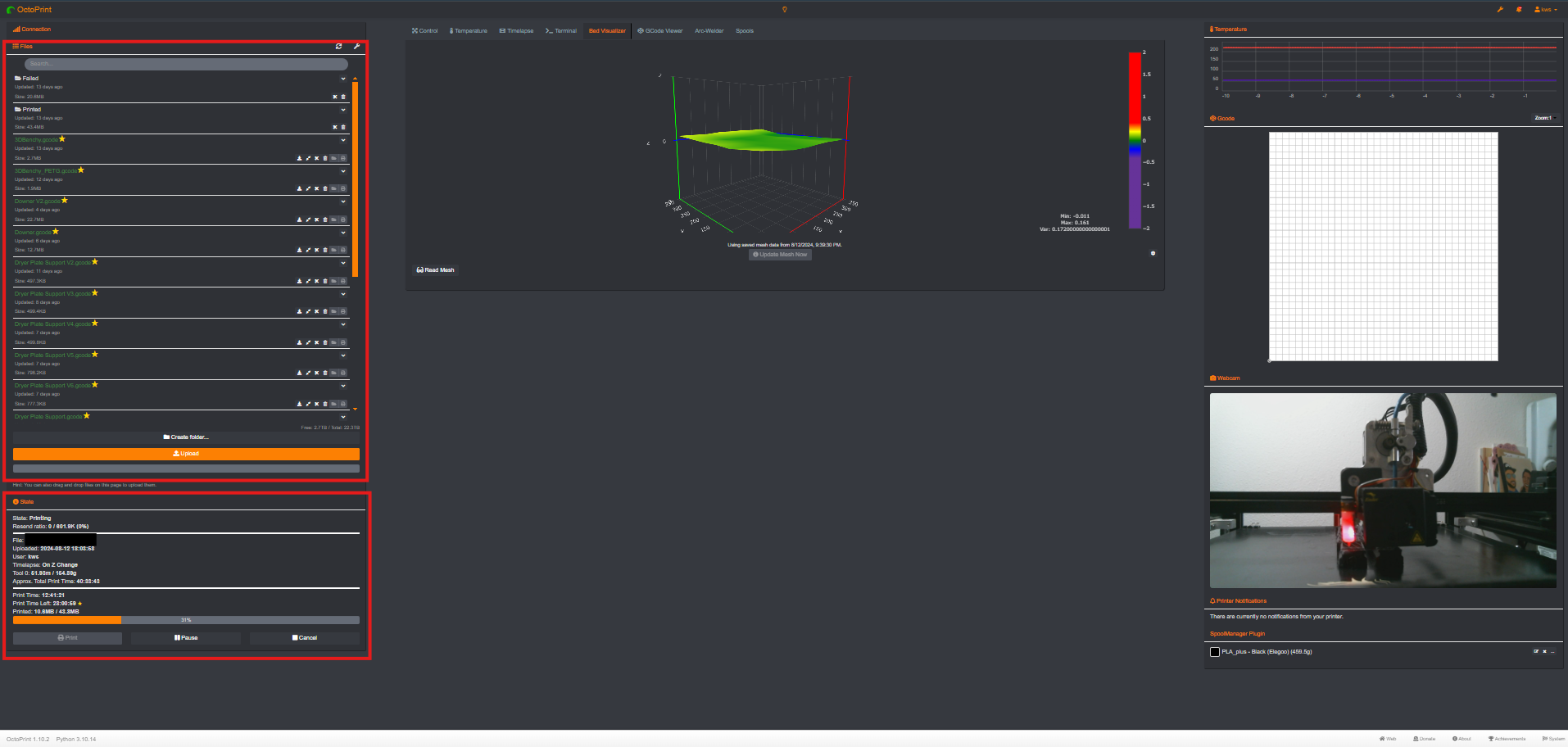
Once you have obtained a G-Code file that you need to print in the shop, head over to 3d.kwsystems.tech and login to your KW Systems G-Suite account. For our setup, as long as your email has the @KWSystemsTech you will be able to login without creating a new account or anything. The first time you login it will kind of feel like you need to make a new login (it did for me[Garret] when I first accessed it with Michael). You can begin interacting with the printer after logging in with credentials that are on 1Password. Once logged in, you will need to upload the file you just sliced using the upload button in the file management pane. Once the upload process has finished, the ArcWelder pre-processer will run.
DO NOT start the print until a notification displays in the top right corner notifying you that ArcWelder has finished.Once the file has been uploaded and processed, starting a job is as simple as clicking the start button on the left hand side and walking away. Monitoring the job is also relatively simple, a realtime stream of the monitoring camera is always present on the right side of the screen along with a 2D view of the G-Code instructions being executed and a realtime graph of the nozzle and bed temperatures. An image showing the OctoPrint Interface with highlighted file management pane, print controls and top menu bar for further navigation.
Refueling
On occasion the printer will require a new roll of filament either because the current roll has been depleted or different material properties are desired. Regardless, it must be ensured that the replacement spool has been entered into the Spools tab in OctoPrint (click the reload button near the top right of the spool table if the spool you are looking for does not immediately appear). If the roll you are looking to use has not been entered into the database, please create a new entry, otherwise skip this paragraph. You should be able to use one of the templates already created, but a guide showing which fields to fill is shown below. Once the spool has been added to the database, print the resultant QR code on thin label paper using P-Touch Editor on the shop network, then place the QR code on the replacement spool.
NO spool without a QR code, accompanying entry in the database, and associated CURA profile can be used to print without first consulting Michael.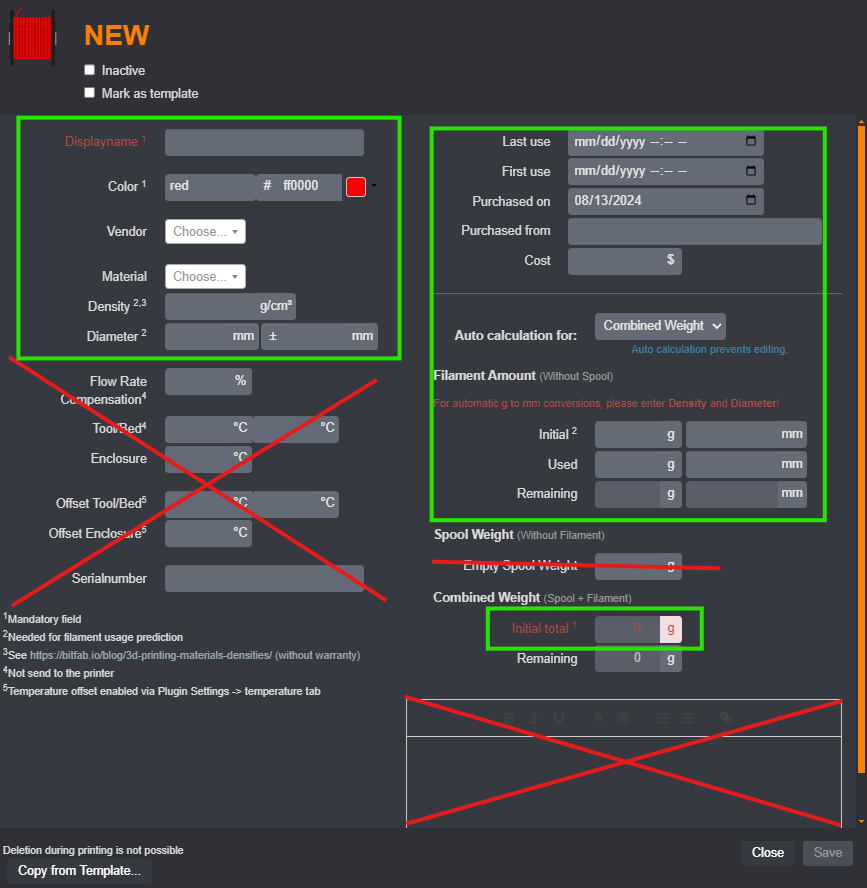
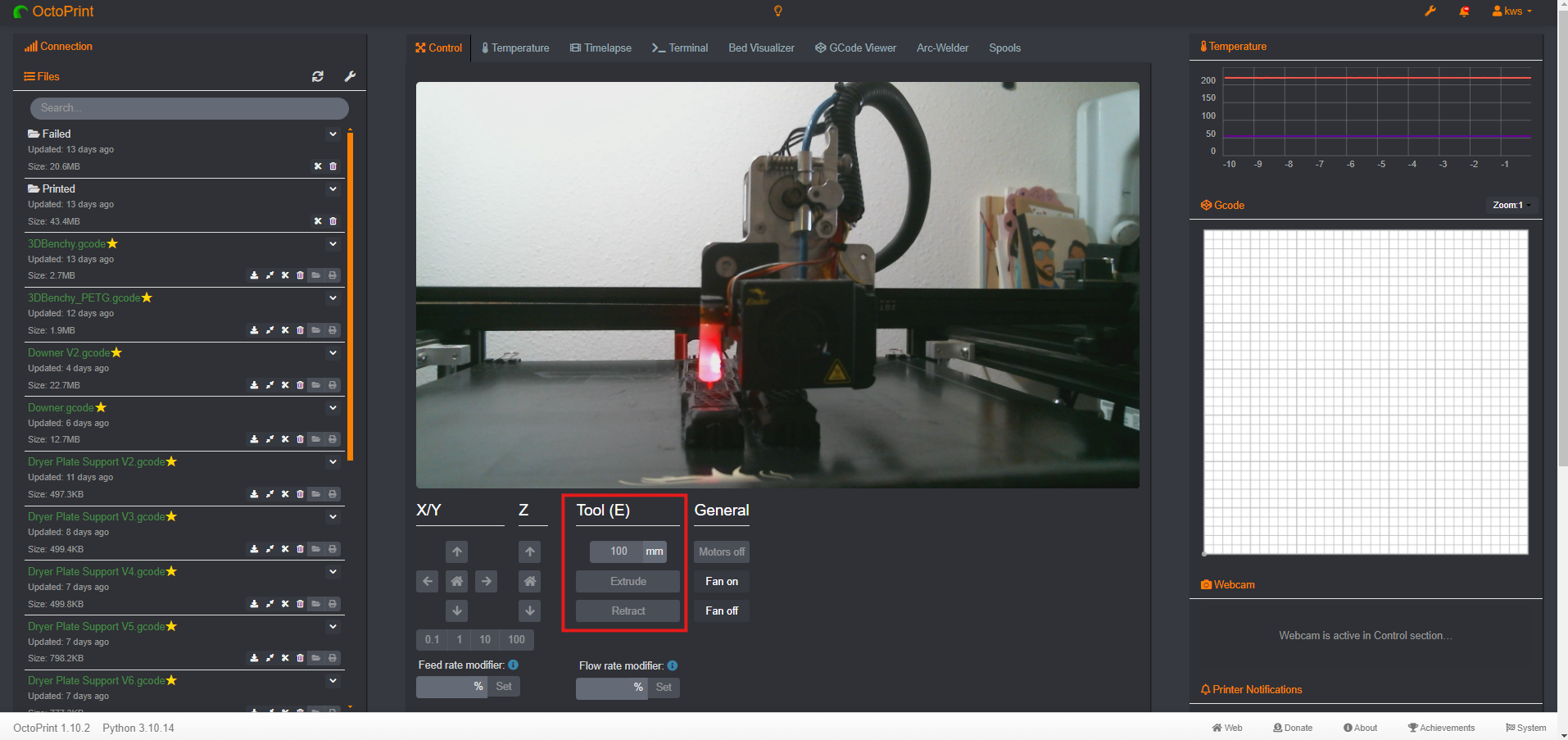
If the roll is being changed during the middle of a print, you will need to use the UI on the printers touch screen to complete the refuel. If you are not changing the filament in the middle of a print, you can use OctoPrint. Regardless of the UI you use, you must take the following steps after removing the filament roll from vacuum storage do not dispose of the bag. First, ensure the hot-end is at the necessary printing temperature for the currently installed material. Next, send a retract command for 100mm using the controls tab in OctoPrint or the UI on the printer. Following this, unload the current roll and load the new roll. The best way to unload the roll is to pull the PTFE tube out of the dryer and pull on the exposed filament, removing it from the tube. Once unloaded and the loose end is secured to the roll, you can load the new spool by threading it through the hole in the dryer and then subsequently through the removed PTFE tube until the new filament end is touching the extruder gears near the hot-end. Once the new filament is touching the gears, make sure the hot-end is at the required printing temperature for the newly installed filament. Then send an extrude command, again using 100mm, using either OctoPrint or the UI on the printer. An image showing the location of the extruder controls in OctoPrint can be found below.
Once you have replaced the roll and loaded it into the hot-end, you must vacuum seal the replaced roll of filament. Ensure that the indicating desiccant packets remain blue are not pink or purple. Then, seal the bag using the automatic pump and included instructions leaflet, do not ignore the leaflet. If the pack is not blue, it needs to be replaced from the vacuum-sealed bag of desiccant packets that should be stored with the filament. Do not throw away the old desiccant packet. It can be regenerated in the oven and will be as necessary, store it in a separate bag (it does not require vacuum sealing). Please ensure the blue desiccant is re-sealed before storage.
Semi-Regular Maintenance
To ensure consistent print quality, the following tasks should be completed on at least a quarterly basis but it is likely that some tasks (such as bed leveling) will need to occur on a more frequent basis. Further, if any issues are being experienced during the printing of a particular part, following the processes outlined here could very well address the issue.
Bed Leveling
One of the tasks that should occur with the most frequency and that has one of the largest impacts on the quality of your print, especially the first layer, is bed levelling. There are two methods that can be used to accomplish this. I will first introduce the manual method that should not need to ever be used but can be in the event that the automatic method either isn't working or is too slow.
AUX Leveling
Using Auxiliary leveling, or manual leveling, requires the use of a feeler gauge which should be located on top of the black electronics case housing the printer main board (if it is not, ask Garret). Once the gauge has been obtained, take out the 0.1mm gauge for use during the leveling process. To start the leveling process, ensure that the bed has reached printing temperature and then hit the leveling button in the printers UI under the Settings section. The printer will home and then come to rest at what it thinks is 0.1mm above the bed. To level the center, place the feeler gauge under the clean nozzle and drag it back and forth. You should feel very slight resistance to moving the feeler gauge but it should not take much force to move. To move the bed and adjust the fit, press the arrows that appear for the z-axis on the left-hand side of the screen.
When adjusting the z-axis, NEGATIVE adjustment brings the bed UP, POSITIVE adjustment brings the bed DOWN.Auto Leveling
The use of automatic leveling is a rather straightforward process that consists of a few simple steps. First, enter OctoPrint and select the Bed Visualizer tab. Once there, click the Update Mesh Now button to acquire a new mesh. The printer will automatically heat to a calibration temperature and begin the Unified Bed Leveling (UBL) process. This process consists of probing ~40 points on the surface of the bed to determine their distance from the nozzle. At the end of the process, a mesh will be generated detailing the height of the bed at all locations.
If ANY areas on the bed mesh are colored RED or PURPLE, PRINTING CANNOT OCCUR until further adjustment.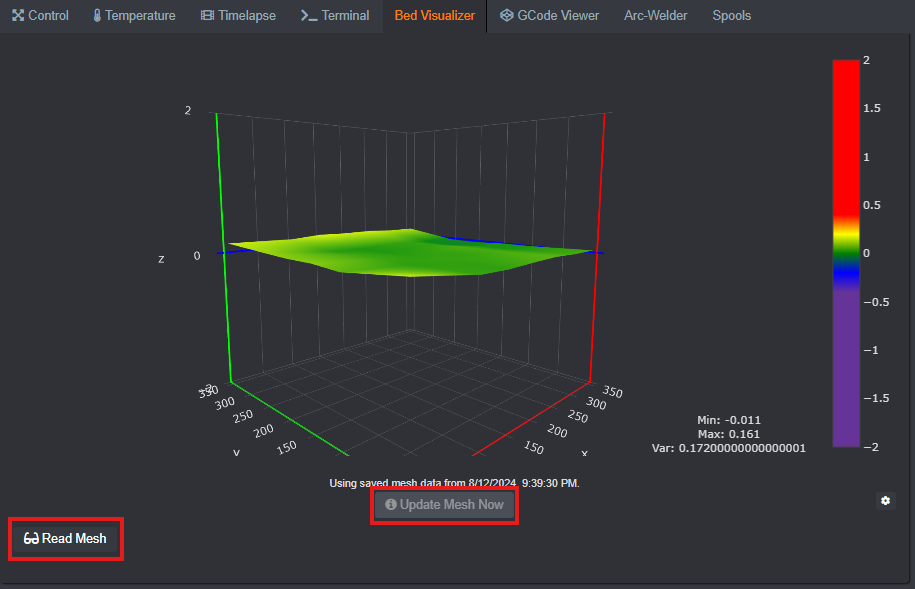
PID Tuning
PID (Proportional-Integral-Derivative) controllers use a feedback mechanism and some calibrated constants that control when heating should be switched on and off for the bed and nozzle given some set temperature and the current temperature of the heating element. Ensuring stable heating element temperatures requires accurate PID calibration. Fortunately, neither you nor I have to deal with any of this complexity and instead can let the Marlin firmware handle it for us. However, some user input is required to start the calibration. To start the PID tuning process for either the hot-end or bed, enter the PID tuning page in the printer's UI under the Tools page in Settings. From there, you can start tuning either the bed or nozzle separately.
DO NOT attempt to start the tuning process for both elements at the same time.

DO NOT send any commands via OctoPrint to the printer during the PID tuning process.
Once the tuning process has finished for all of the elements you wish to tune, make sure to press the save settings button on the printer's UI or send the M500 command to the printer over the terminal interface to save the PID constants to the EEPROM.
Tightening V-Slot Rollers & XY Belts
Over time, the black wheels that hold the x-rail on the frame and the hot-end on the x-rail (v-slot rollers) and the belts the drive the X-axis & Y-axis will become loose with repeated motion. This can introduce slop into the movement of the print head which can sometimes cause irregularities in things like the finish of walls.
Tightening either the V-Slot Rollers or the XY Belts requires that the printer is off to ensure the motors are not locked and is for safety when near the exposed belt pulleys.To tighten the rollers, ensure that that the v-slot roller screws are as tight as possible without impeding carriage motion. To tighten the belt, take off the pulley covers on either corner and loosen the retaining screw holding the pulley plate to the adjacent aluminum extrusion. Once loose, pull the plate towards you until the belt is adequately taught.
Cleaning
One of the most important tasks that should occur as often as is possible is regular cleaning of the 3D Printer. This includes most importantly the build surface, followed by the v-slots, z-axis guide (not screws), the print nozzle, intake for both hot-end cooling fan (front) as well as part cooling fan (right) and, finally, at least once a year, inspect the electronics case (screws on bottom of printer) for dust/debris.
Nozzle Changing
When higher quality prints are desired or onerous materials are being used it may be required that the currently installed nozzle be changed. Installing a new nozzle is a straightforward process but requires considerable caution to ensure that subsequent prints do not spectacularly fail. First, unload the currently loaded spool if one is present. Then, disassemble the hot-end fan and BL-Touch exposing the all metal hot-end. Following this, heat the hot-end to the maximum temperature supported in the above listing of configured materials, hereinafter referred to as the set temperature. Once the nozzle has reached the set temperature, the currently equipped nozzle may be removed and the new one screwed in.
When screwing in a new nozzle, ensure it is as tight as it can possibly be while the hot-end is at set temperature. Failing to do so can cause catastrophe.

When screwing in the new nozzle, you must ensure to also grip the heating block it is screwed into to prevent
Once the nozzle has been properly screwed in, you may reassemble the hot-end and reload the filament.
BEFORE finishing, ensure that the currently equipped nozzle size has been entered into OctoPrint by following the steps illustrated in the below pictures.

The value listed in OctoPrint for the nozzle size is ALWAYS correct, use it if there is ever any question when slicing in CURA.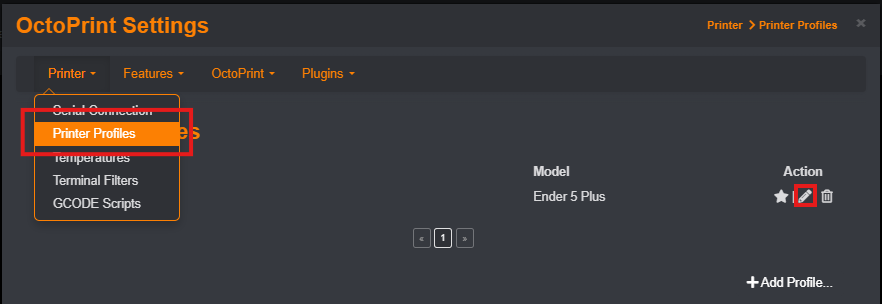
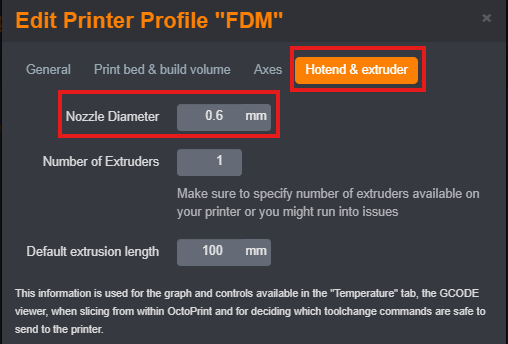
The final step in this process is to PID tune the hot-end following the steps outlined in the appropriate section.
Bed Adhesive
Some materials do not stick to the equipped glass bed without special attention being paid to bed adhesion. The bed adhesive we use is the hair spray in the purple can. To apply it, heat the bed to ad least 100°C and spray one coat over the print surface. Wait for that coat to dry and repeat the process for two to three coats.
When applying bed adhesive, ensure that the bed is not sprayed continuously for a prolonged period (don't hold the sprayer open for more than 10s). If it is, you may cause the printer to enter a thermal runaway failsafe state that will temporarily disable the printer until a power cycle is completed.Was this article helpful?
That’s Great!
Thank you for your feedback
Sorry! We couldn't be helpful
Thank you for your feedback
Feedback sent
We appreciate your effort and will try to fix the article