Purpose
Allow tenants/authorized persons to have remote door access to unlock Kaimuki Business Center elevators and doors. Please read the full article.
Create Account
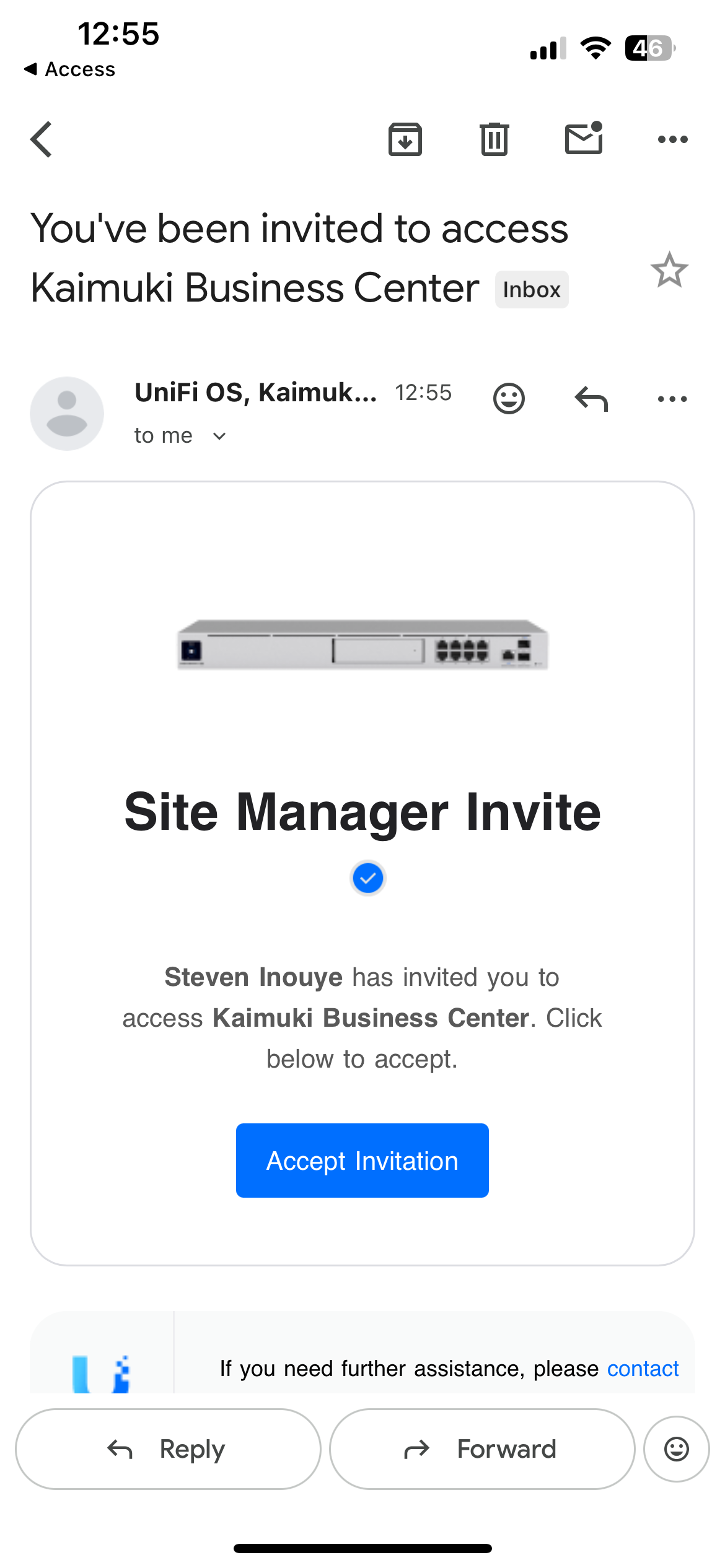
- Once you receive the email below saying "You've been invited to access Kaimuki Business Center," you will be able to create your account for remote door access.
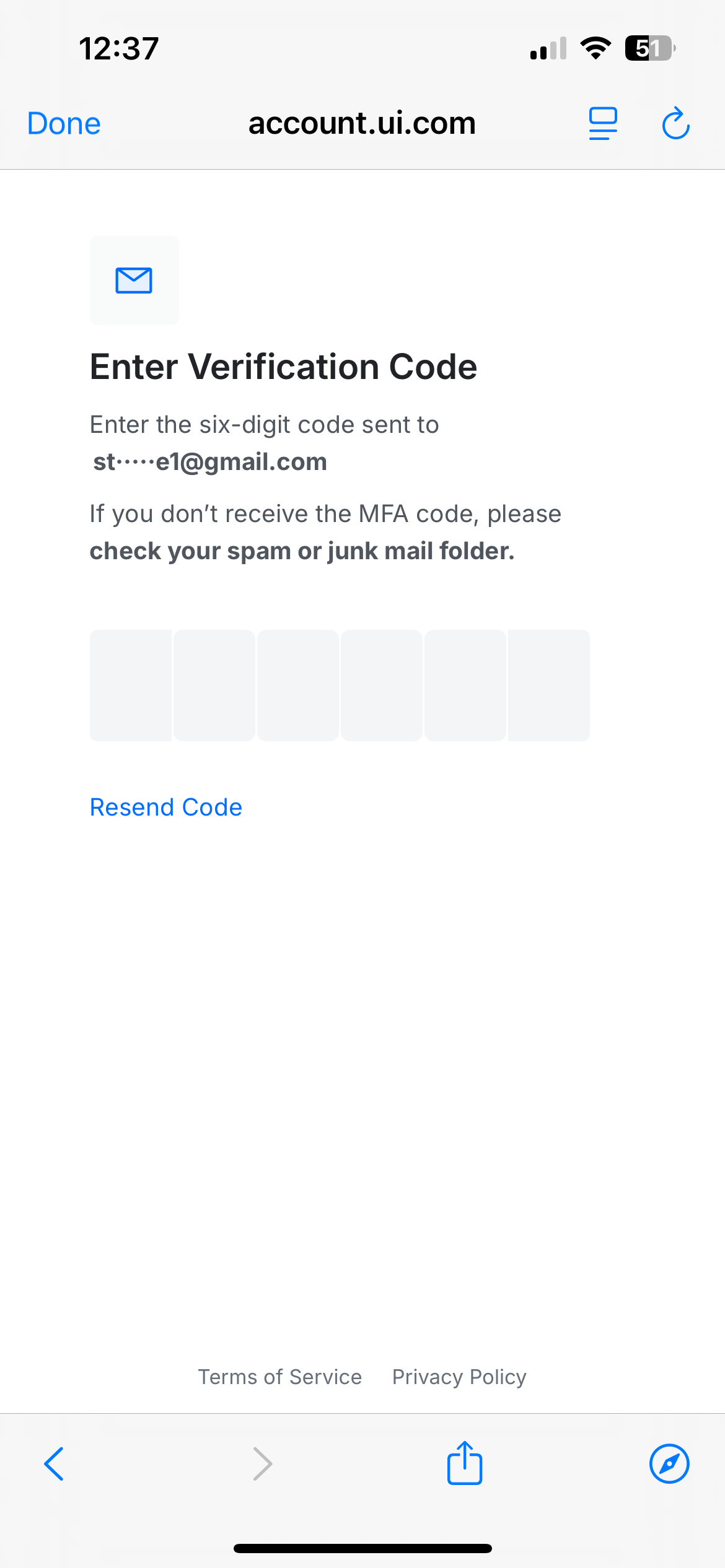
- You will be sent to a browser where you can create/login to your account. Please create/login with the email account the invite was sent to for seamless account creation
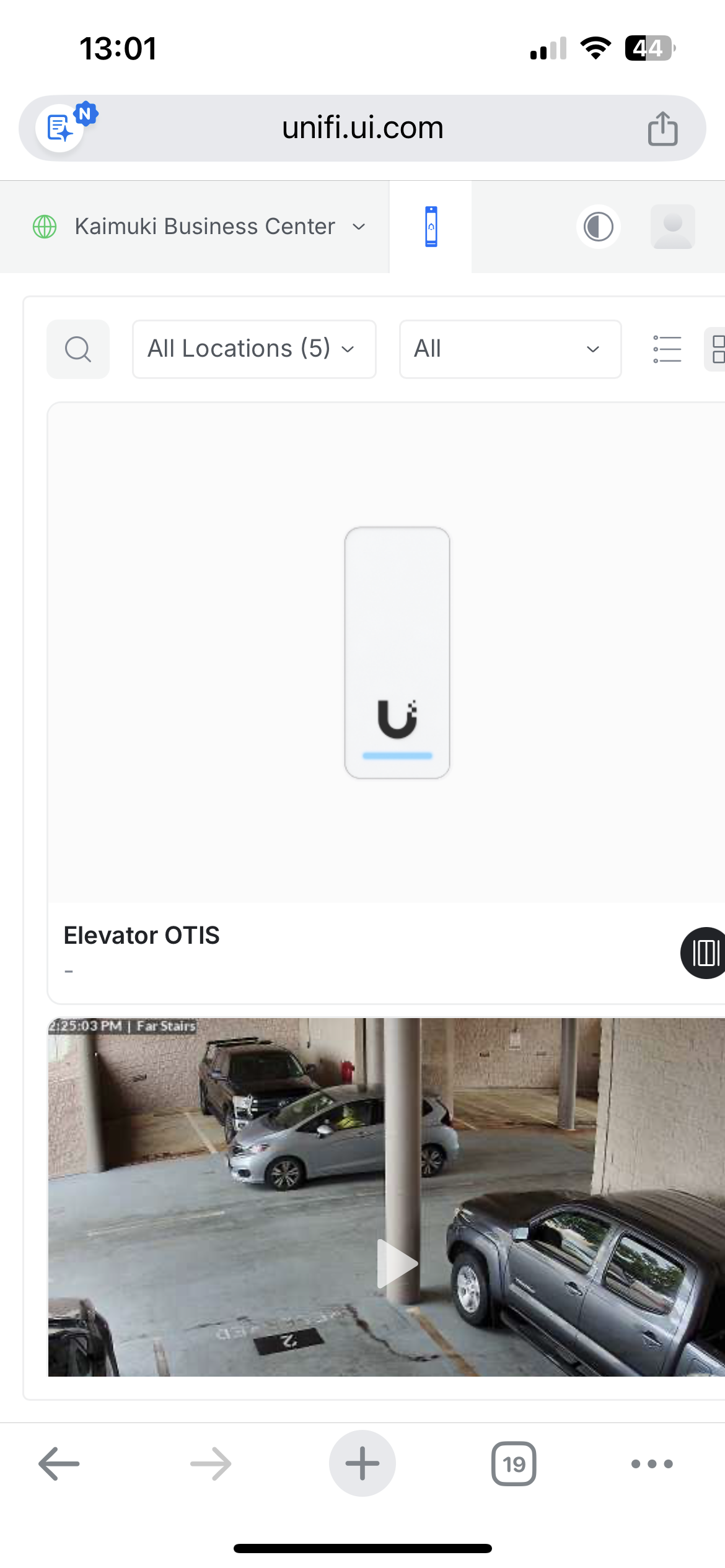
- After logging in it should look like this (4th image) within the browser. From here you can unlock the doors, but it is easier to do so through the app.
*NOTE* when prompted with the two-factor authentication and the code DOES NOT work, resend the code but do not select the notification if it pops up, wait 15-30 seconds then go directly into your inbox to get the code.

Getting the UniFi Access App
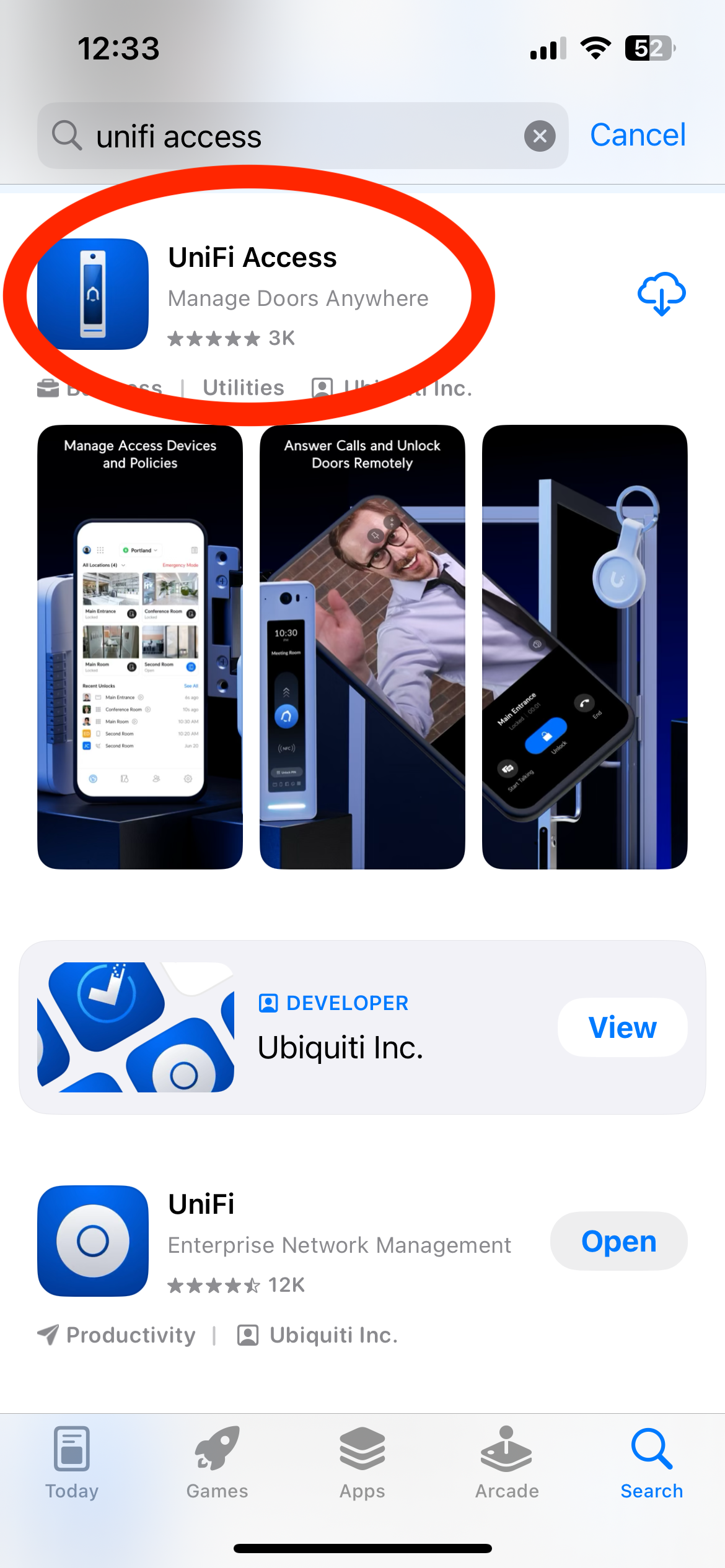
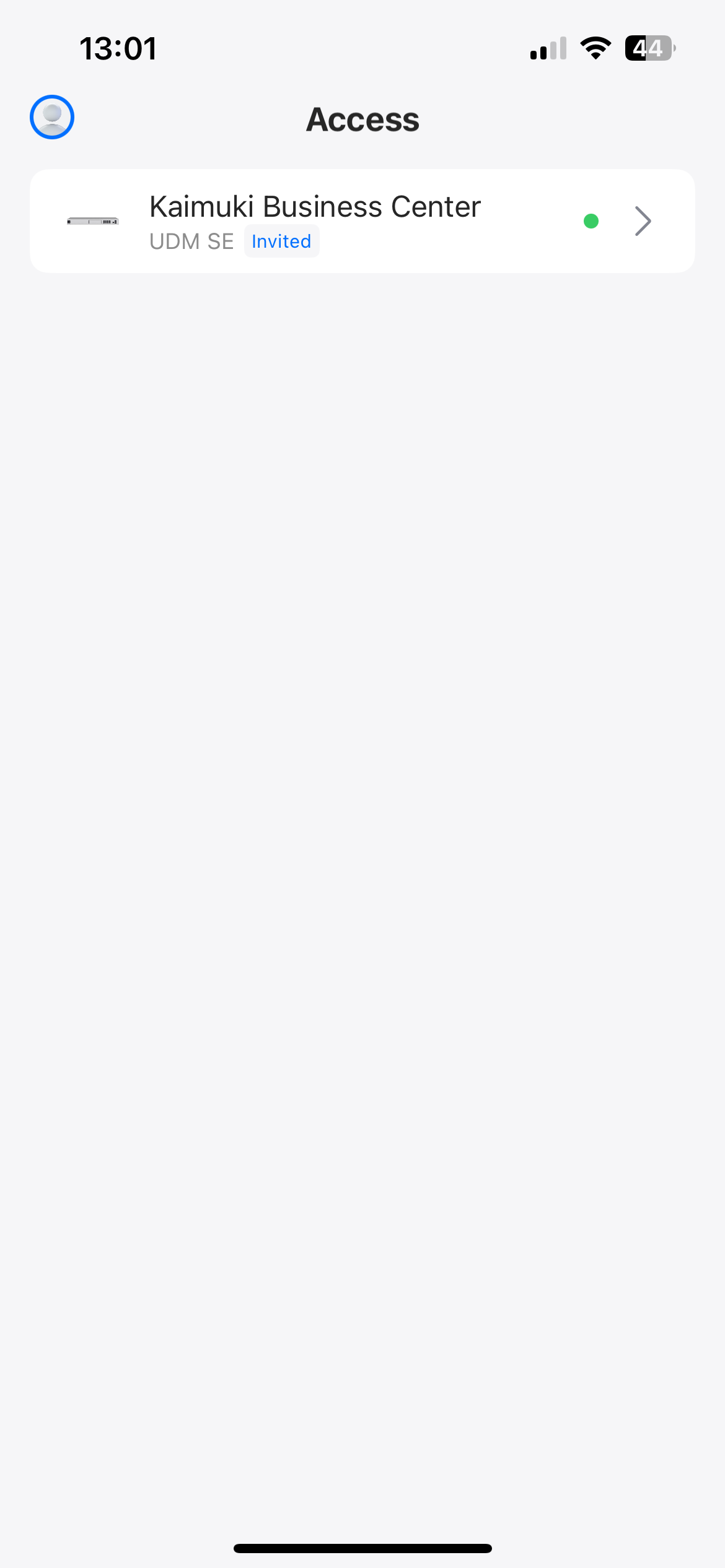
- Install the "UniFi Access" app and login with your credentials
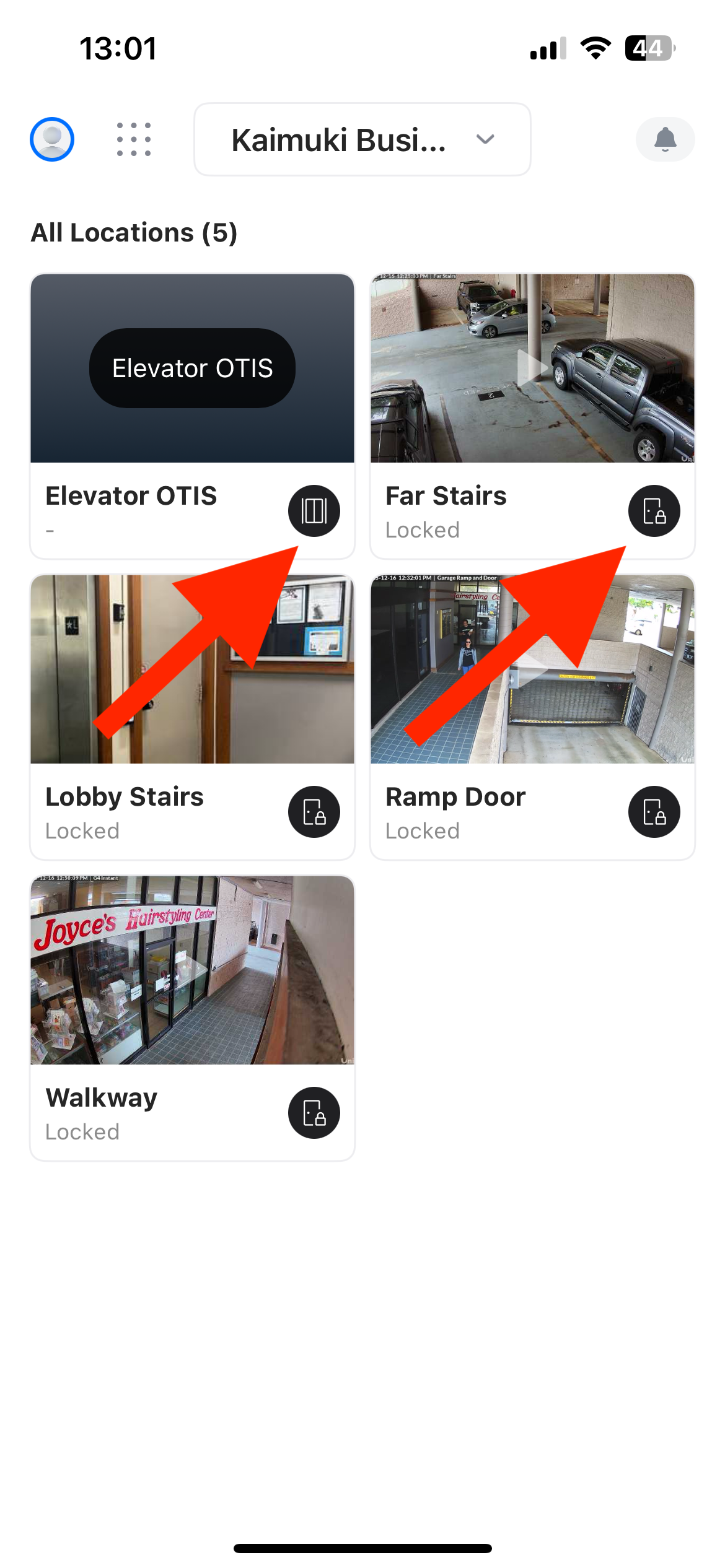
- There should be a tab named "Kaimuki Business Center", select that
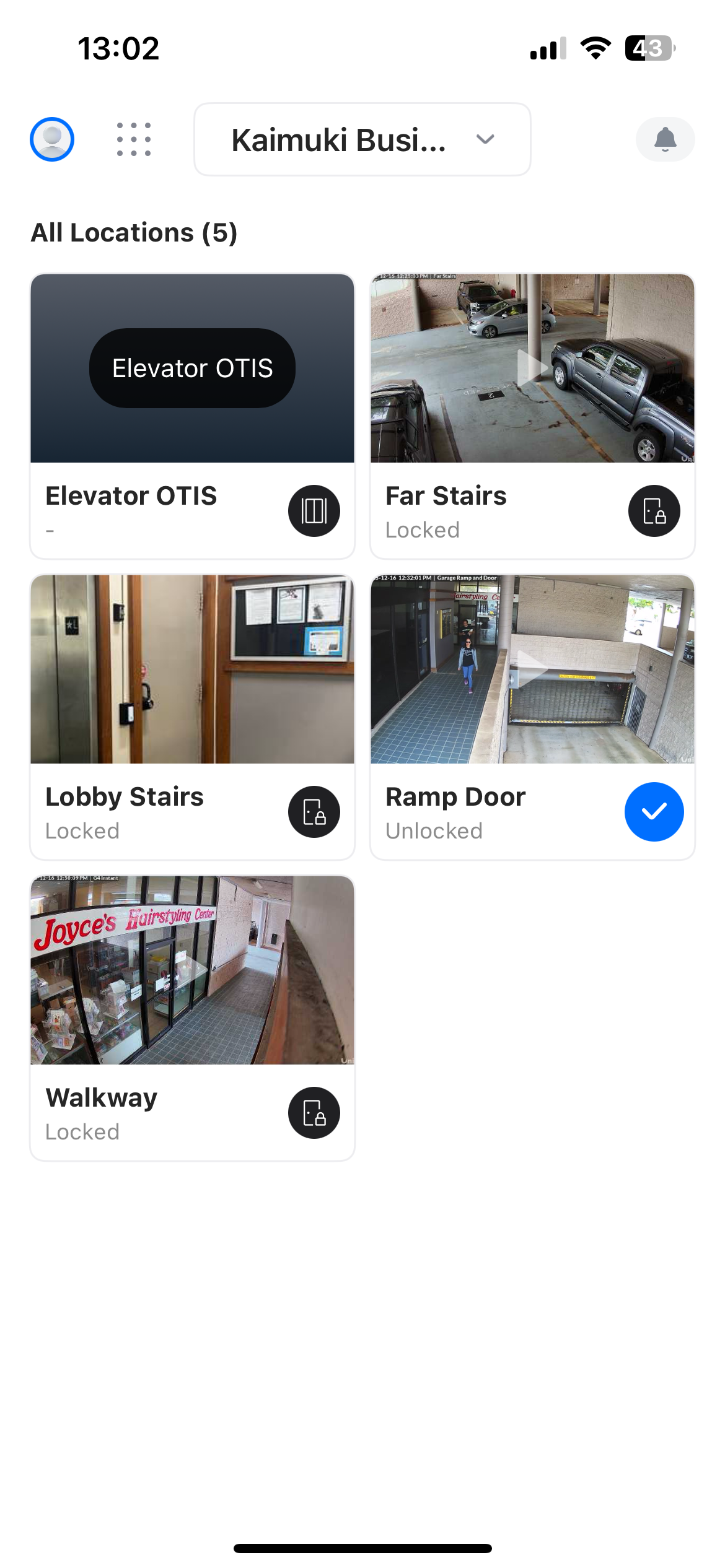
- In order to unlock one of the doors, select the black button of the respected door you want to unlock. The button should turn blue and it should say "unlocked" and return back to its original locked state after a few seconds.
*NOTE* the elevator unlock button allows the elevator to be called from the lobby and basement level at the same time. It controls both levels at once.
Was this article helpful?
That’s Great!
Thank you for your feedback
Sorry! We couldn't be helpful
Thank you for your feedback
Feedback sent
We appreciate your effort and will try to fix the article